




























Products
Create, manage, and update your product listings, including pricing, images, variants, and availability.
Catalog
- What are the ways I can add products to my store?
- How do I sync my store with Shopify?
- How should I format my CSV file to successfully upload products?
- How are product categories set when using Shopify sync or CSV uploads?
- What is the difference between a physical product and a digital product?
- If my store is synced with Shopify, can I change a product’s description in DogPack?
What are the ways I can add products to my store?
There are three ways to add products to your DogPack store. You can choose the method that best fits how you manage your inventory. Each option below can be clicked to view more detailed instructions.
A) Add products manually
Create products one by one directly in the seller panel.
B) Upload products using a CSV file
Quickly import multiple products at once using a bulk upload template.
C) Sync your store with Shopify
Connect your Shopify store to automatically pull in all product details, including titles, descriptions, images, pricing, and inventory. Another benefit of syncing with Shopify is that you can manage both your products and your orders directly from Shopify.
Once your store is synced with Shopify, manual product creation and CSV uploads are disabled, as your product data will be fully managed through Shopify.
How do I sync my store with Shopify?
You can sync your DogPack store with Shopify directly from the seller panel. The setup process is quick and usually takes about 5–10 minutes.
Once connected, your products and orders will automatically sync from Shopify into DogPack, allowing you to manage everything from one place.
Click below to view the full step-by-step guide and video walkthrough.
Shopify Help Guide
How should I format my CSV file to successfully upload products?
Your CSV file must follow DogPack’s required format in order for products to import correctly. This includes using the correct column names, data types, and structure for things like titles, prices, SKUs, etc…
A properly formatted CSV ensures your products are uploaded quickly and without errors.
Click below to view the full formatting guide and download the CSV template.
CSV Help Guide
How are product categories set when using Shopify sync or CSV uploads?
When you upload products using Shopify sync or a CSV file, DogPack automatically assigns categories to your products based on the information provided.
We recommend reviewing your product categories after the upload to ensure everything is accurate and placed in the correct section of the marketplace.
If you’d like to change a product’s category, you can do so at any time by opening that product in the seller panel and editing it from the product edit screen.
What is the difference between a physical product and a digital product?
Physical products are items that need to be shipped to the buyer. This means you must set up shipping methods, delivery times, and shipping costs for these products.
Digital products are delivered electronically, such as files, downloads, or digital content. Since no shipping is involved, shipping rules, packaging, and shipping costs do not apply to digital products for the buyer.
If my store is synced with Shopify, can I change a product’s description in DogPack?
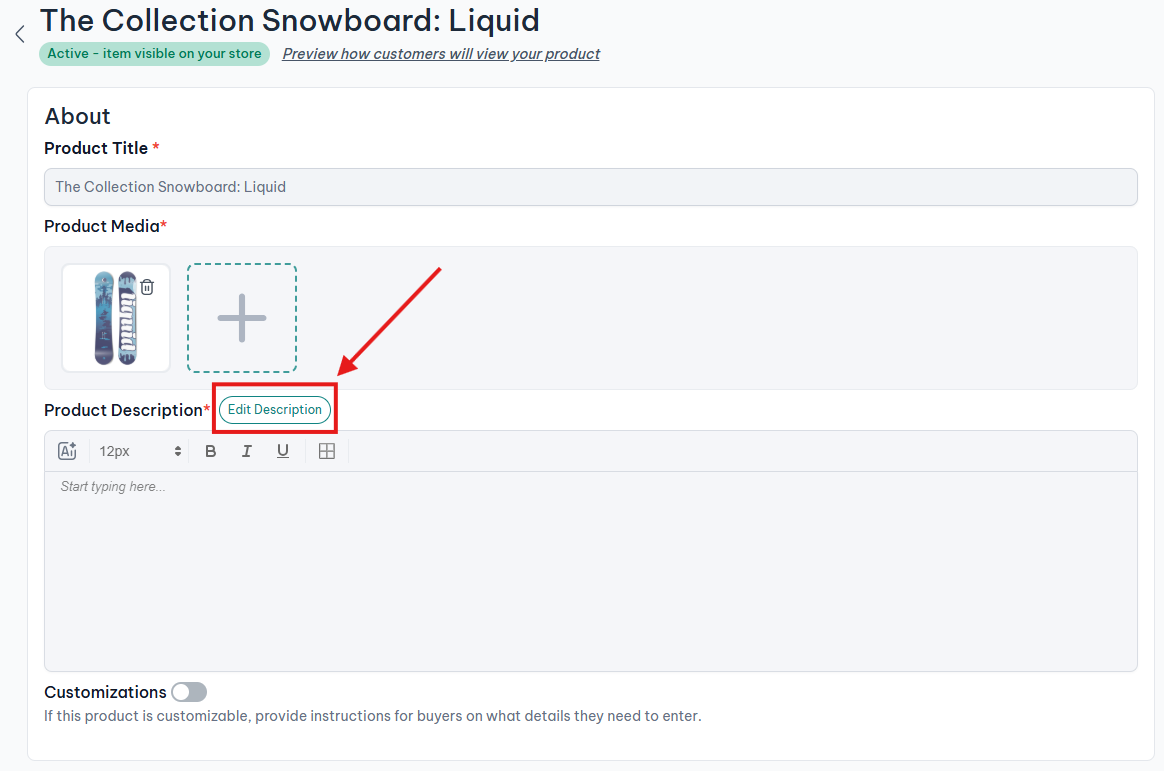
Yes. You can edit a product’s description directly in DogPack by going to the product editing screen and clicking the Edit Description button, as shown in the screenshot below.
When you do this, the change only applies to your product on DogPack. It does not update or modify the description on your Shopify store in any way.
After editing:
A) The DogPack version of the description will be managed independently.
B) Future description changes made in Shopify will no longer sync to this product on DogPack.
C) Shopify will continue to use its own version of the description.
This lets you tailor your product descriptions specifically for DogPack without affecting your Shopify store.