






























Store Management
Manage your store details, shipping and packaging, policies, sections, and payout setup.
Catalog
- Shipping & Packaging – What is my fulfillment location?
- Shipping & Packaging – What does setting up a shipping zone mean?
- Shipping & Packaging – What is the difference between carrier rate and flat rate shipping?
- Store Policies – How do Store Policies work on DogPack?
- Store Sections – What does setting up store sections do?
- Payout Setup – How do I connect an existing Stripe account?
- Payout Setup – Can I get paid using a method other than Stripe?
Shipping & Packaging – What is my fulfillment location?
Your fulfillment location is the address where your orders are shipped from. This information is used to calculate accurate shipping rates and delivery times, so it’s important to enter a complete and precise address.
At the moment, DogPack supports one fulfillment location per store. If you ship from multiple locations, we recommend setting your main location and using flat-rate shipping rules to keep pricing consistent.
Shipping & Packaging – What does setting up a shipping zone mean?
Setting up a shipping zone means you are confirming that you ship your products to that country. This allows buyers in that region to place orders from your store.
Once a shipping zone is set, you can choose how shipping costs are calculated. You can either use carrier-calculated rates for buyers or set up a custom flat-rate shipping price.
Shipping & Packaging – What is the difference between carrier rate and flat rate shipping?
Carrier rates calculate the real shipping cost based on the weight of your products and the buyer’s location. The buyer pays the exact amount charged by the shipping carrier for that shipment.
Flat rates are custom shipping prices that you define. You can set simple or flexible rules, such as free shipping over a certain order value or a fixed price per order. Flat-rate shipping is generally more user-friendly for buyers and is the option we typically recommend.
Store Policies – How do Store Policies work on DogPack?
DogPack makes setting up store policies simple and flexible. You don’t need to write a custom policy from scratch. Instead, you choose whether you accept returns, exchanges, both, or neither, and specify the time window for each option.
You can create up to four different policies and assign different policies to different products. This allows you to tailor policies based on the type of product you’re selling.
Buyers will always see the applicable policy directly on the product page before completing their purchase.
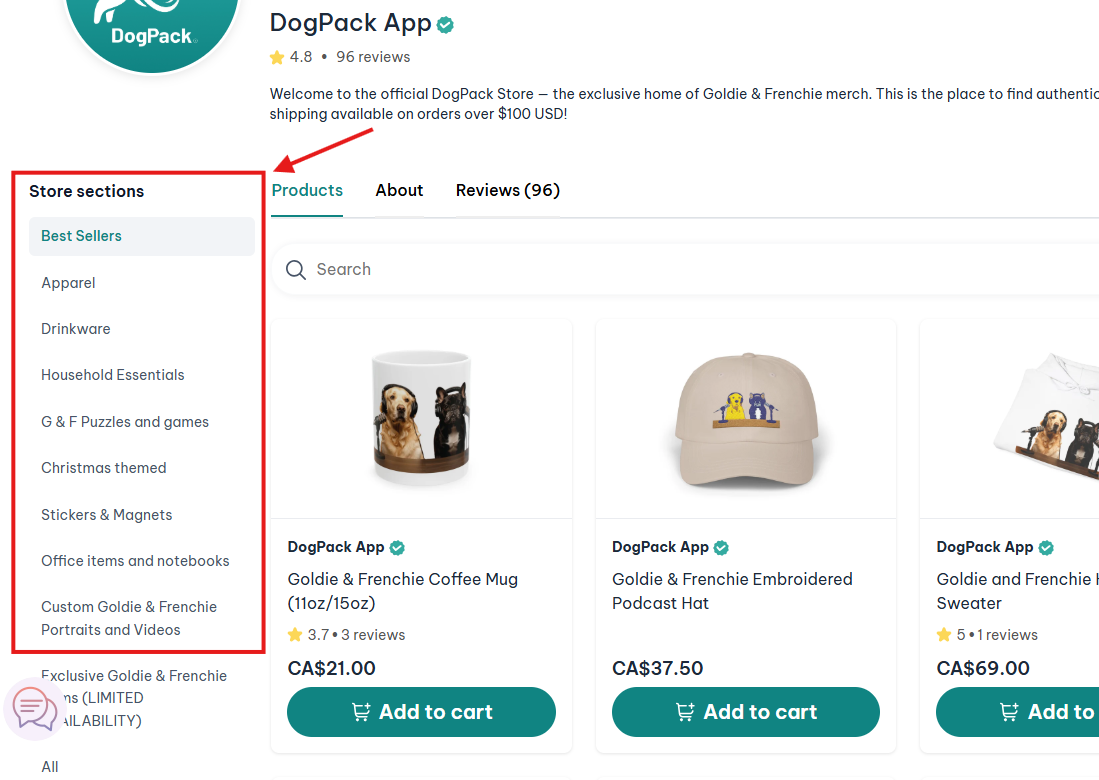
Store Sections – What does setting up store sections do?
Store sections let you organize your products by type, making your store easier to browse and helping buyers quickly find what they’re looking for. You can create up to 20 store sections to structure your storefront in a clear and intuitive way.
Well-organized store sections can significantly improve conversions on the platform.
Each store section also has its own unique URL, which you can use to promote or advertise a specific group of products.
Payout Setup – How do I connect an existing Stripe account?
To receive payouts, simply click Connect in the payout setup section and follow the guided flow. If you already have a Stripe account, you can log in using your existing credentials during this process.
If you don’t have a Stripe account yet, you’ll be prompted to create one by entering your business details. The setup typically takes about 5 minutes.
Once connected, you won’t need to revisit this section unless you want to update your payout details or change the institution where you receive payments.
Payout Setup – Can I get paid using a method other than Stripe?
At the moment, payouts are only supported through Stripe. Stripe is required to securely handle payments and payouts on DogPack.
We are actively working on adding additional payout options in the future, but for now, all sellers must connect a Stripe account to receive payments.